
Artome Connect app has additional audio settings to further customize your device to your specific use case. Audio settings vary between hardware versions, device models and the firmware installed.
All of these settings are persistent and can only be adjusted from the app. Audio settings are located in the settings tab.
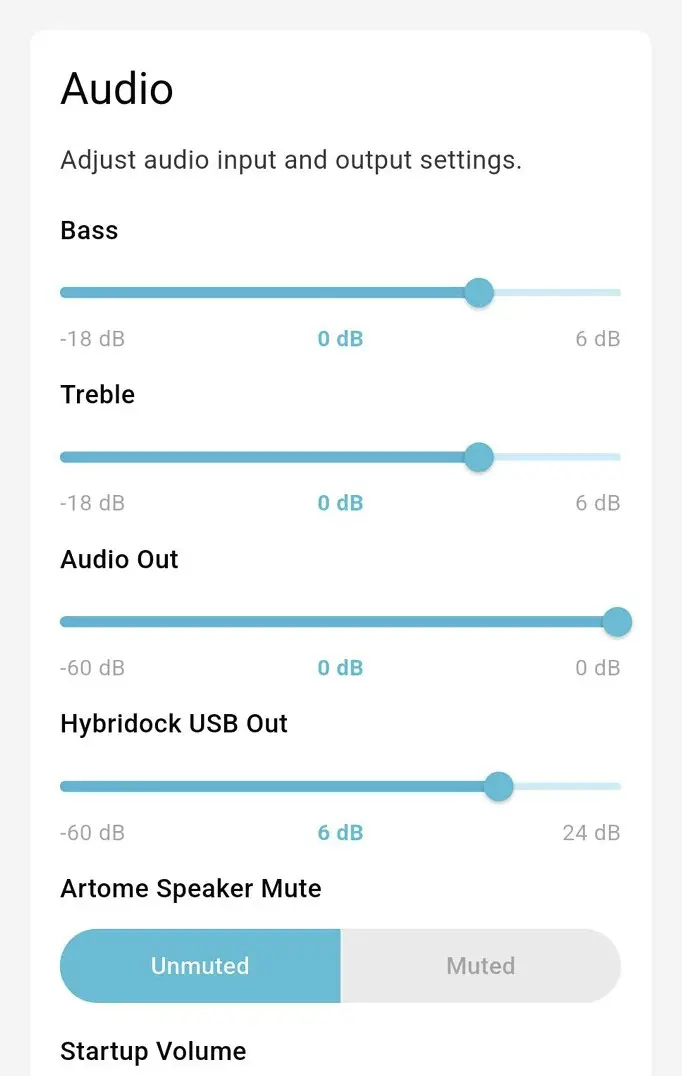
Bas och diskant
Bass level controls low frequencies played by bass speaker. Treble level controls higher frequencies. Use the sliders to adjust the audio to desired level.
Ljudutgångsvolym
Audio out level controls the output volume of audio out connectors. This setting is available for devices with audio out connectors.
Audio Out Mode
Audio out can be switched between mono and stereo mode. This setting is available for devices with audio out connectors.
Hybridock USB Ut
Controls the level Artome microphone inputs are sent to the USB audio interface ( e.g. Hybridock microphone level in Teams, Zoom or Meet).
Artome-högtalare avstängd
This setting allows disabling Artome internal speakers when an external PA system is used.
Startvolym
Adjust the startup volume of the device.
Max volym
Adjust the max volume of the device.
Aux In-volym
Aux in level controls the volume of the unbalanced audio input at the back of the device. This setting is available for devices with aux in connector.
Balanced Line-in Mode
This setting allows selecting whether the XLR inputs work on mic level or line level. The default is mic level.
For HW232 devices the input sensitivity is changes. For HW231 devices only the microphone dynamics are disabled but the sensitivity stays high. Recognizing your product
Balanced Line-in Level
Use the slider to adjust the input level of the balanced XLR inputs.
Volume Adjustment Chimes
Enable or disable volume adjustment chimes.
Reset Audio Settings
The reset button returns the above audio settings to their default values.