This feature is supported by HW23x devices. Recognizing Your Product
This feature was introduced in a firmware release. Updating device firmware
By default, Artome microphone ports are in mic level mode for easy microphone usage. The input mode can be changed in case a microphone system, mixer or any other line level source is connected.
NOTE: with HW231 devices the input sensitivity doesn’t change but microphone dynamics (gate, compressor, HPF) are disabled. Use the additional balanced input slider in the Connect app to adjust the input sensitivity or the volume controls of the connected audio device.
Instructions
Artome Connect
- Open the app on your mobile device. NOTE: You have to be connected to your Artome device.
- Navigate to Settings > Audio
- Set Balanced Line-In Mode to Line-In
Remote control
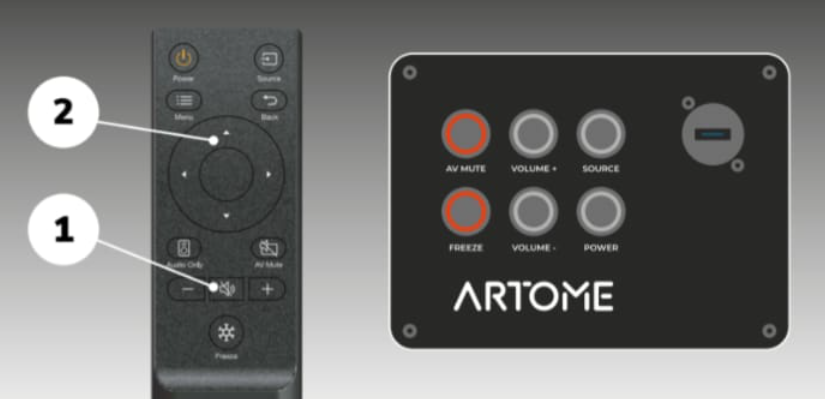
- Press and hold the remote’s MUTE button for 10 seconds until AV MUTE/PAUSE and FREEZE leds turn on.
- SOURCE blinking: Line-in mode is active
- POWER blinking: Mic mode is active
- Use UP and DOWN buttons to select the desired mode. Confirm by pressing the MUTE button.