
Let the Artome unit manage playback and the Catchbox Hub handle distortion-free speech input, and get a high-end sound system for in-person and hybrid meetings.
Also check out the installation video.
What will you get?
- Professional audio without separate mixers and processors
- Distortion-free audio by matching signal levels
- A system that easily adapts to video conferencing and multi-source events
What will you need?
- Artome unit (Only models with HybriDock USB audio support video conferencing)
- Artome remote or Artome Connect app (to modify settings)
- Catchbox Plus system (Hub receiver and microphones)
- Catchbox XLR-to-3-pin adapter (purchased separately)
- Two 0,5m – 1m extension XLR cables, depending on the installation location in the rack.
- Two 0,5m – 1m extension XLR cables, depending on the installation location in the rack.
Step-by-step instructions
Configure Artome input to line level
To avoid distortion, the Artome unit must be set to Line Level to match the Catchbox Hub’s output.
Via the Artome Remote Control
- Long-press the MUTE button on the remote for 10 seconds. Two left-most LEDs on the button panel will illuminate and a chime will be heard.
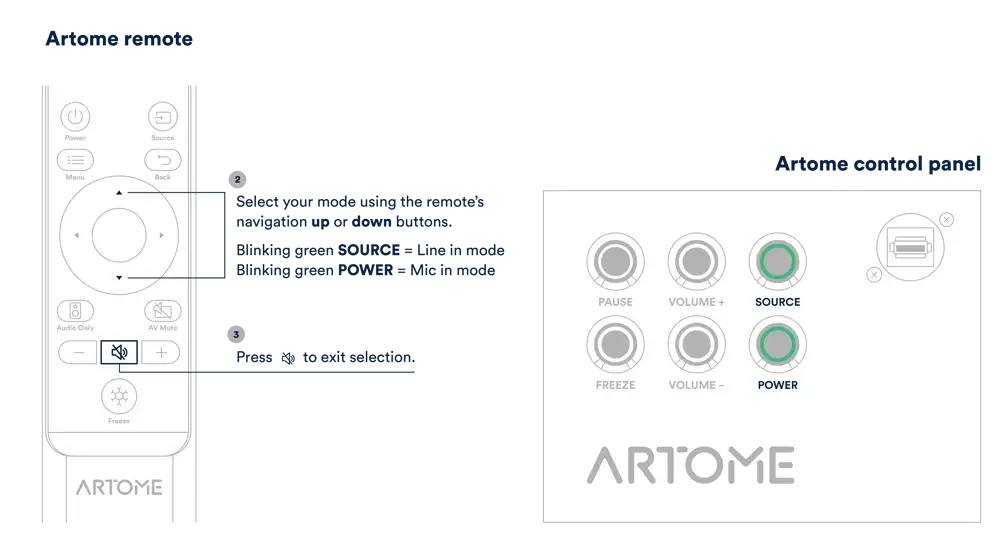
Use the up/down buttons on the remote to select between line and mic level input mode.- Mic mode is indicated by the blinking POWER button.
- Line mode is indicated by the blinking SOURCE button.
- When line mode is selected, use the left/right buttons to adjust the input gain.
- Confirm the selection with the remote’s MUTE button.
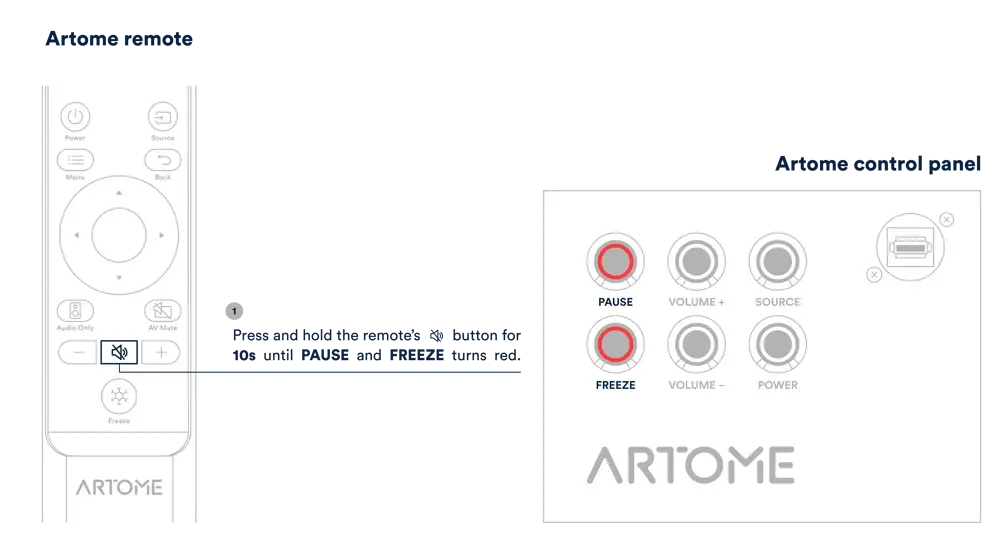
Via the Artome Connect App
- Open the Artome Connect app and navigate to: SETTINGS → AUDIO → BALANCED LINE-IN MODE → LINE-IN
Configure Catchbox Hub output
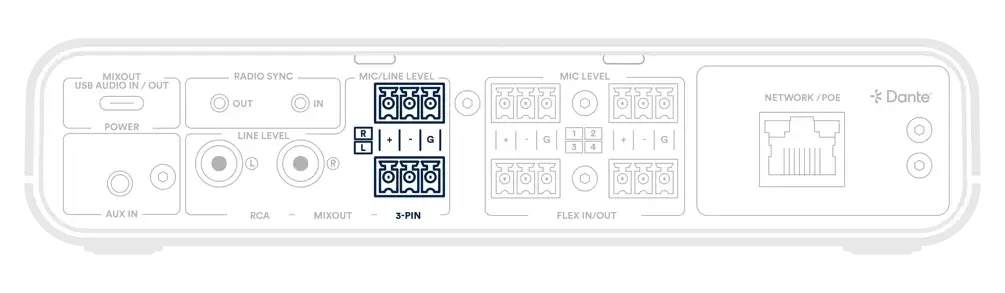
- Connect the Hub’s 3-PIN Mixout (L or R) to an XLR input on the Artome unit using the Catchbox XLR-to-3-pin adapter. Use the extension XLR cables if necessary.
- On the Hub’s front-panel, navigate to: OUT → MIXOUT 3-PIN and set the level to LINE LEVEL
- Route the microphones in the Mix Configuration menu by enabling the needed MIC channels.

Tips for better audio
On the Artome unit
Speaker EQ: Adjust Bass (low frequencies) and Treble (higher frequencies) to match the room’s acoustics — making speech clearer or media playback richer.
Volume Limits: Set a Startup Volume so the system always begins at a safe level, and a Max Volume to prevent audio from being turned up too high.
External PA Mode: If connecting to a larger external sound system, enable the Artome Speaker Mute setting. This disables the internal Artome speakers while keeping the signal active for the external system.
On the Catchbox Hub
In-Room Voice Lift: Use the Voice Lift Level feature on the Hub to amplify in-room microphone audio. This replaces complex manual gain adjustments and keeps sound consistent for the whole room.
Optimized Video Calls: When using video conferencing platforms (Teams, Zoom, Meet, etc.), connect your PC to the Hub and set it to Speakerphone mode, using the Hub as the primary audio device. The Hub’s built-in DSP will ensure the best hybrid meeting audio quality.