
Pair your Artome device with the Artome Connect for remote control, firmware updates, and extended settings.
Artome Connect is compatible with Artome devices with HW231 and later. Recognizing Your Product
Instructions
- Make sure your Artome device is on standby or powered on.
- Open Artome Connect app.
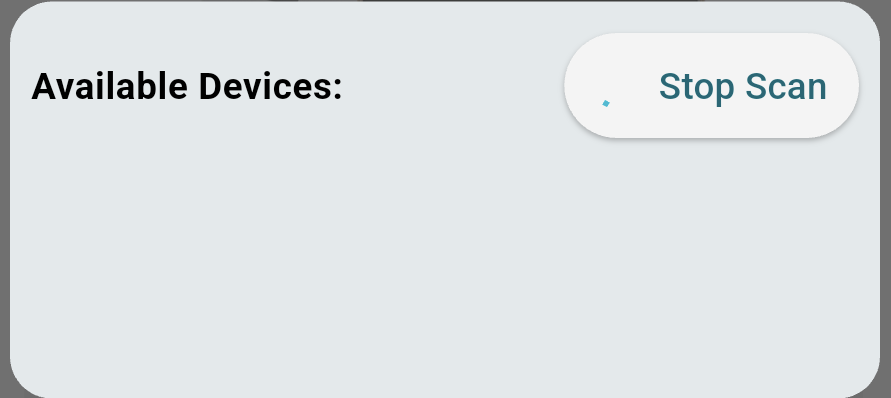
- Tap on Add Device or the top-left corner Menu to open the devices view. The app starts scanning for nearby devices automatically.
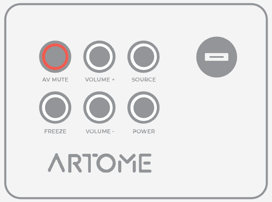
- Activate pairing mode by long-pressing PAUSE / AV MUTE on the button panel until it blinks.
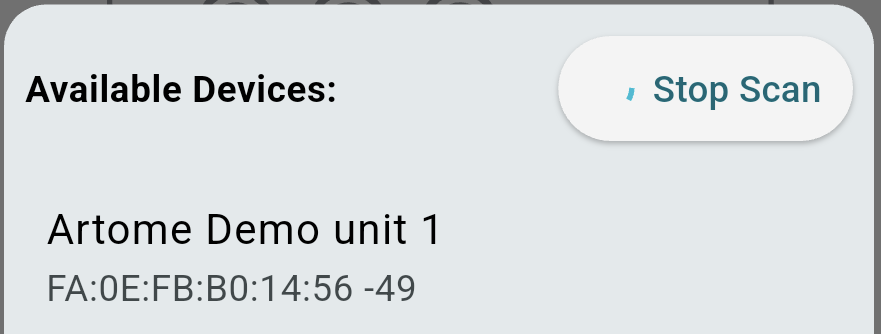
- The device now appears on the device list. Select the found device.
- Accept the Bluetooth pairing requests.
- iOS: a popup request appears.
- Android: a popup or a notification request appears. The request needs to be accepted twice.
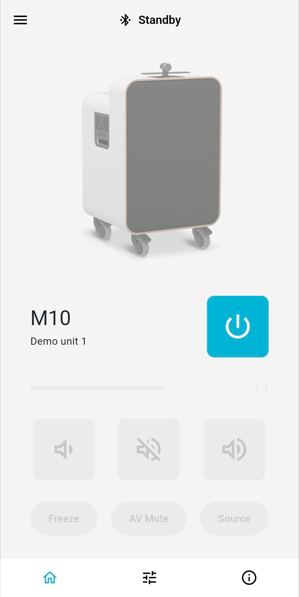
- The device is now paired and ready to use.
Issues with pairing?
- Check that no other mobile device has an active connection with your Artome unit. This stops the pairing process.
- In your mobile device’s Bluetooth settings, remove any device named Artome.
- Android: Settings > Bluetooth > Select a device named Artome > Remove pair
- iOS: Settings > Bluetooth > Device named Artome > Info button > Forget this device
- Re-open the app and start the pairing process again.
- If the above steps don’t help, power cycle your Artome device and start the pairing process again.